 LabControl
LabControl
Documentation (english) - v 1.0
First use information
Running LabControl server for the first time:
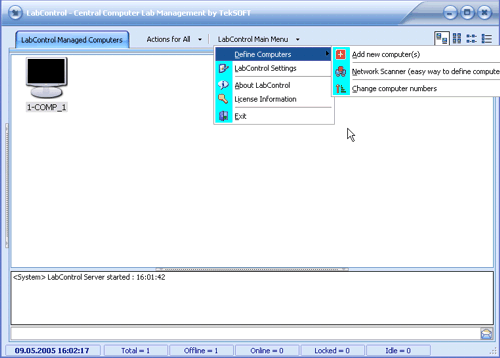
When you run LabControl server for the first time, you will see the following main screen. There is one computer already defined in this screen (which is automatically added and can be deleted later):
 -
-
First thing to do is to "define" the computers in your lab.
There are two ways to define computers:
1. Easy way: Select "Network Scanner" from the main menu and then click "Scan Network" button. LabControl will scan your network and will provide you with a list of undefined computers.
Note : If you want to define computers with "network scanner", ensure that the client computers you want to define are running.

After scan, you will see a screen looking like above.
Under "LabControl Network" box is the list of the computers in your network. There is a list of "Undefined Computers" at right, with two buttons:
Define All : You can add all undefined computers to LabControl by clicking this button.
Define Selected : If you want to add some of the computers from the list to the LabControl, then you can select the computers from the list and click "Define Selected" button. For selecting more than one computer, click computer names in the list while pressing CTRL key.
Note : If there is no undefined computers in your lab, then "Undefined Computers" list will not be visible.
2. way : Add New Computer(s) menu: You can add a computer manually if you prefer. Select "Add new computer(s)" from the main menu in order to add computers manually.
Add computer screen:
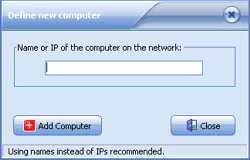
Just enter the name or IP of the computer you want to add and then click "Add Computer" button. You can add any number of computers before closing this window. (using computer names instead of IPs is recommended).
I defined the computers in my lab, what next?
Just right click on a computer's icon and see the popup menu. This is the computer control menu you will use frequently.
For the first use of the control menu, you can delete the computer 1-COMP_1 (assuming there is no computer with a name COMP_1 in your lab). To delete COMP_1, right click on it's icon and select "Computer Definition Related -> Delete this computer" from the popup menu. This is the way to delete a computer from LabControl list.
When a client computer makes a connection to the server, you will notice that it's icon changes accordingly. Computer icons and their meanings are explained in "Server information" section.
With labcontrol server running, the computers are defined, and clients are running, you will see the state of the computers in your lab "realtime" with visual icons and online management options from the control popup menu will be available.
You can continue with "Server Information", "Client Information" or "FAQ" links.