LabControl
LabControl
Documentation (english) - v 1.0
LabControl Server Information
Main screen of LabControl server:
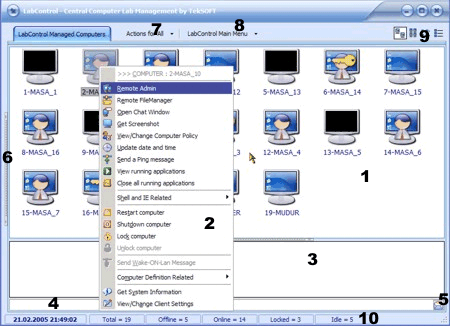
LabControl server main screen will be like the one below normally (the image below is an example):
Note the numbers on the image. They are explained below:
1. Lab view area: The state of your lab will be shown with visual icons in this area.
2. Control menu: This menu will popup when you right click on a computer's icon. You can easily select an opearation from this menu.
3. Message area: Labcontrol writes the result of the operations and incoming messages in this area. You can clear current messages by right clicking on this area and selecting "Clear messages" from the popup menu.
4. Message field: You can send a message to the selected computer using this field. Just press Enter key to send the message (by pressing CTRL+Enter, you can send the message to all online computers at once).
5. Message to all button : Send the message in message field to all online computers (same as CTRL+Enter in message field).
6. Selected Computer Panel hotspot: By pressing this hotspot, you can make the "Selected Computer Panel" visible. This panel provides information about the selected computer.
7. "Actions for All" menu: Using this menu, you can perform operations on all online computers at once.
8. "LabControl Main Menu" menu: This is the "main menu" of LabControl. Main menu will be explained later in this page.
9. View Options: There are four different view options for "lab view area". You can change the view by using this buttons.
10. Status pane : This pane shows date and time, along with the numbers of offline, online, idle, and locked computers.
LabControl main menu explained
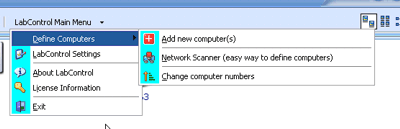
Add new computer(s) : Add a computer manually. Explained in the previous section.
Network Scanner : Add computers automatically. Explained in the previous section.
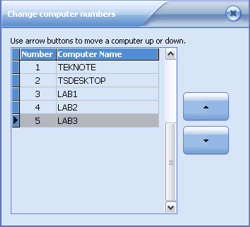
Change computer numbers : Using this menu item, you can change the computer numbers (and change the order of the computers on the screen).
Using up and down buttons, you can move a computer up or down in the list.
About LabControl : Information about LabControl.
License Information : LabControl license information.
LabControl Settings: Brings up labcontrol settings screen.
LabControl Settings explained
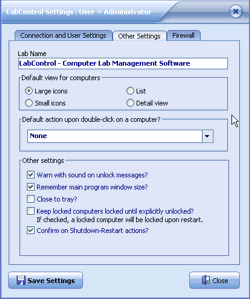
LabControl settings screen consists of three tabs. Each tab is explained with a picture below. If you make any changes in settings, use "Save Settings" button to save the changes.
1. Connection and User Settings tab:
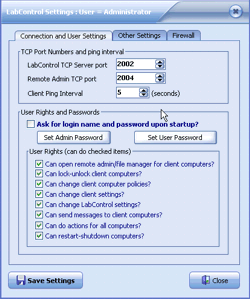
Server TCP Port : LabControl Server TCP port number (default=2002). This is the port number on which LabControl server listens for client connections. If you change this number, you must change this number for the clients accordingly.
Remote Admin TCP Port: This is the TCP port number (default=2004) on which labcontrol clients listen for remote admin connections. If you change this number, you must change this number for the clients accordingly.
Client ping interval : This is the client ping interval (seconds, default=10). LabControl server pings a client for every ten seconds by default.
User rights and passwords: If you want, you can make LabControl ask for a user password at startup by checking "Ask for login name and password upon startup" item.
There are two user types (admin and normal user). You can set admin and user passwords using the buttons (which are both blank by default).
You can prevent "normal user" from doing some actions by removing the check mark from the items in "user rights" box.
2. Other Settings tab:
Lab Name : You can enter the name of your lab in this field if you want. This name will be shown on a locked computer's screen.
Default View : You can set a default view for "Lab view" area of LabControl: large icons, small icons, list or detail view.
Default Action upon double click on a computer : By default, LabControl does nothing upon double click on a computer's icon. You can change this behaivour by selecting an action from the combobox.
Other settings
Warn with sound on unlock messages : self explained.
Remember main program window size : self explained.
Close To Tray: self explained.
Keep locked computers locked until explicitly unlocked : If you check this item, LabControl server will remember the state of a client computer (locked or unlocked) and will keep a locked computer locked until it is unlocked. A locked client computer will be locked automatically even it is restarted if this item is checked.
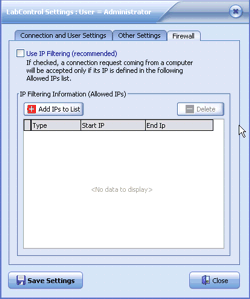
3. Firewall tab
If you want, you can make LabControl use IP filtering on connection requests by checking "Use IP filtering" item.
If this item is checked, a connection request from a computer will be accepted only if its IP is defined in the "Allowed IPs list".
You can add an IP or IP range to the list by clicking "Add IPs to List" button.
Note : Before checking "Use IP filtering" item, ensure that you entered the IP numbers of the computers in your lab to the list.
Computer icons and their meanings
|
|
 |
 |
 |
Computer Offline |
Online - Idle |
Online - Used |
Locked - Idle |
Locked - Used |
Using this icons, LabControl shows the state of your lab "realtime".
Operations you can do with LabControl (control menu explained)
1. Remote Admin: You can use an online computer with Remote Admin just like you are sitting in front of that computer.
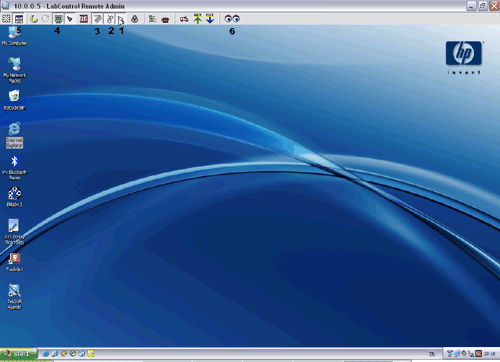
LabControl remote admin screen:
Icons that are numbered on the above screen:
1 (mouse movements) : If pressed, mouse movements, mouse clicks and keyboard are enabled and you can use the remote computer. (By default it is not pressed).
2 (mouse clicks) : If pressed, mouse clicks will be sent to client computer.
3 (keyboard) : If pressed, keyboard keys will be sent to client computer.
4 (automatic refresh) : If pressed, the screen will be refreshed automatically. You can change the refresh rate and image quality from the options.
5 (scale to window) : Scale remote desktop to fit the remote admin window.
Lock icon (lock server input): If pressed, the keyboard and mouse will be disabled on client computer.
6 (options) : From this menu, you can change the refrehs rate and image quality.
Note : If you just want to view the remote computer, just press "Automatic Refresh" icon.
2. Remote File Manager: You can transfer files to/from a client using Remote File Manager.
3. Open Chat Window : Opens a window which lets you chat with a client.
4. Get Screenshot : Get current screenshot from the client.
5. Update Date and Time : Synchronize client's time with the server.
6. Send a ping message.
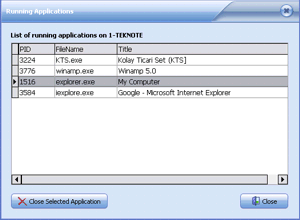
7. View running applications : Shows you the list of the running applications on client computer at the time. If you want, you can close any running applications you want. (The list shows applications that are started by the user, excluding system services and applications).
Running applications screen:
You can close an application on the client by clicking "Close selected Application" button or using the popup menu.
8. Close all running applications: Close all running applications on the client computer.
9. Restart/Shutdown : Restart or shutdown a client computer.
10. Lock : Lock a client computer. A locked computer cannot be used until it is unlocked.
Locked computer screen:
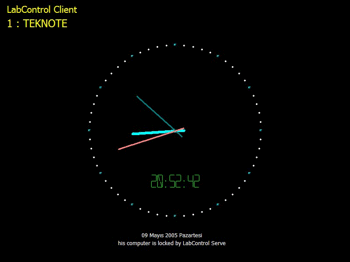
11. Unlock : Unlock a locked computer.
12. Send a WakeOnLan Message : Send a WakeOnLan message to an offline computer and make it start (* requires hardware wakeonlan support on client side). LabControl records the MAC address of a client computer when a client gets online and uses this information to send WakeOnLan messages.
13. View/Change Computer Policy : Usign LabControls handy policy editor, you can change some important policy settings on a client computer easily.
Policy editor screen :

"Apply this policy settings to All online computers" item lets you to apply policy settins to all online computers at once.
14. Get System Information : Gets detailed system information from a client computer. It may take some time for the client computer to prepare and send detailed system information. Please wait for 5-10 seconds when you ask for system information. The system information will be shown automatically when it is received.
15. View/change client settings : You can view and change client settings from the server easily; and if you want, you can send new settings to all online client computers at once. Client settings can also be changed on the client side and is explained in "Client Information" section.
16. Run a program : Run a program on a client computer (or on all online computers).
17. Set IE Homapage: Set IE homepage of a client computer (or of all online computers).
16. Clean shell and IE (fast): Resets internet explorer home page (if changed), clears internet history and recent documents menu.
17. Clean shell and IE (complete): In addition to fast cleaning, also clears IE cache, cookies and favorites.
Actions for all menu
You can perform most of the operations on all online client computers at once using this menu.
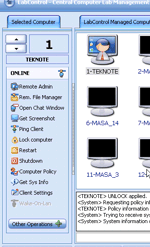
"Selected Computer" pane
Closed by default. Can be opened.
You can continue with "Client Information" link.