LabControl
LabControl
Documentation (english) - v 1.0
Client Information
Labclient runs silently as a tray icon. Tray icon changes when there is a connection the the server.
Labclient lets you do admin operations on the client.
Admin login :
If you press admin login hotkey (CTRL+ALT+L by default) on a computer running Labclient, you will be prompted with the admin login screen:
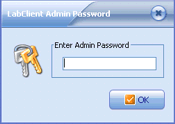
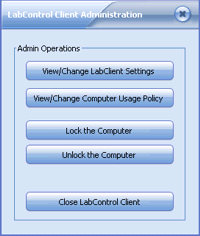
If correct admin password is entered (admin password is blank by default), Labclient lets you do admin operations on the client with client admin screen.
Client admin screen:
View/Change LabClient Settings : You can view and change client settings. Client settings are explained later.
View/Change Computer Usage Policy : You can edit computer policy using LabClient's handy policy editor (which is the same as the one used on server). Policy editor is explained in "Server Information" section.
Lock the computer : You can lock the client computer.
UnLock the computer : You can unlock the client computer.
Close LabControl Client : You can close Labclient.
Client settings
Labclient settings screen:

Connection Related Settings
LabControl Server : The name of the computer (or IP number) running Labserver.
Server TCP port : Server TCP port number (default=2002).
Remote admin TCP port : This is the port number on which Labclient listens for remote admin requests (default=2004).
Connection timeout : This is the connection timeout for client->server connections (default = 1000 milliseconds).
Server ping interval : Labclient sends a ping message to the server every ten seconds by default.
Note : Connection settings are important. If you make any changes in port numbers, you should also change the port numbers on server side accordingly.
Other settings:
Admin hotkey : You can change admin hotkey (CTRL+ALT+L) with another hotkey. (Hotkey must be in the form of CTRL+ALT+[key]).
Admin Password : You can change LabClient admin password, which is blank by default.
Start with windows: Checked by default. Uncheck this item only if you want to uninstall LabClient.
Hide tray icon: LabClient works as a tray icon by default. If you want Labclient be invisible, check this item.
Enable Server Chat : Check this item if you want to give users on the client computer to be able to send messages to the server via LabClient.
Allow unlock message : If you check this item, a "Send unlock request" menu item will be available on the client when the client is locked.
Autoshutdown computer when it is not in use: If you check this item, a client computer which is idle for a specified minutes will be shutdown automatically.
Not in use time : This is the time for autoshutdown (minutes).
NOTE:
Labserver lets you view and change client settings from the server side with a similar screen. For online computers, it is easier to change client settings from the server.
You should change client settings on the client if there is a connection problem.